
To open an Incognito window in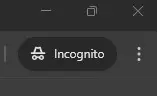 Google Chrome, you can use the keyboard shortcut Ctrl + Shift + N on Windows, Linux, or Chrome OS, or ⌘ + Shift + N on a Mac. Alternatively, you can click on the three vertical dots in the upper-right corner of the browser window, then select “New Incognito window”.
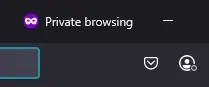 To open Firefox in private mode, you can use the keyboard shortcut Ctrl+Shift+P on Windows/Linux or Command+Shift+P on macOS. Alternatively, you can access private browsing through the Firefox menu by selecting “New Private Window”.
To open an incognito window in Microsoft Edge, you can follow these steps: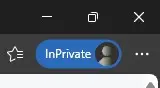
Alternatively, you can use the keyboard shortcut Ctrl+Shift+N to start an incognito session quickly.
Safari’s incognito mode, also referred to as private browsing, allows users to surf the internet without their browser logging or saving any activity data, including cookies, search history, and autofill information. To enable private browsing in Safari, you can follow these steps:
NOTE: If your browser is not listed, do an Internet search with the browser name and private browsing. When you close a private browsing window, all session traces will be erased, appealing to users who share a device or want their browsing activity to remain private.